
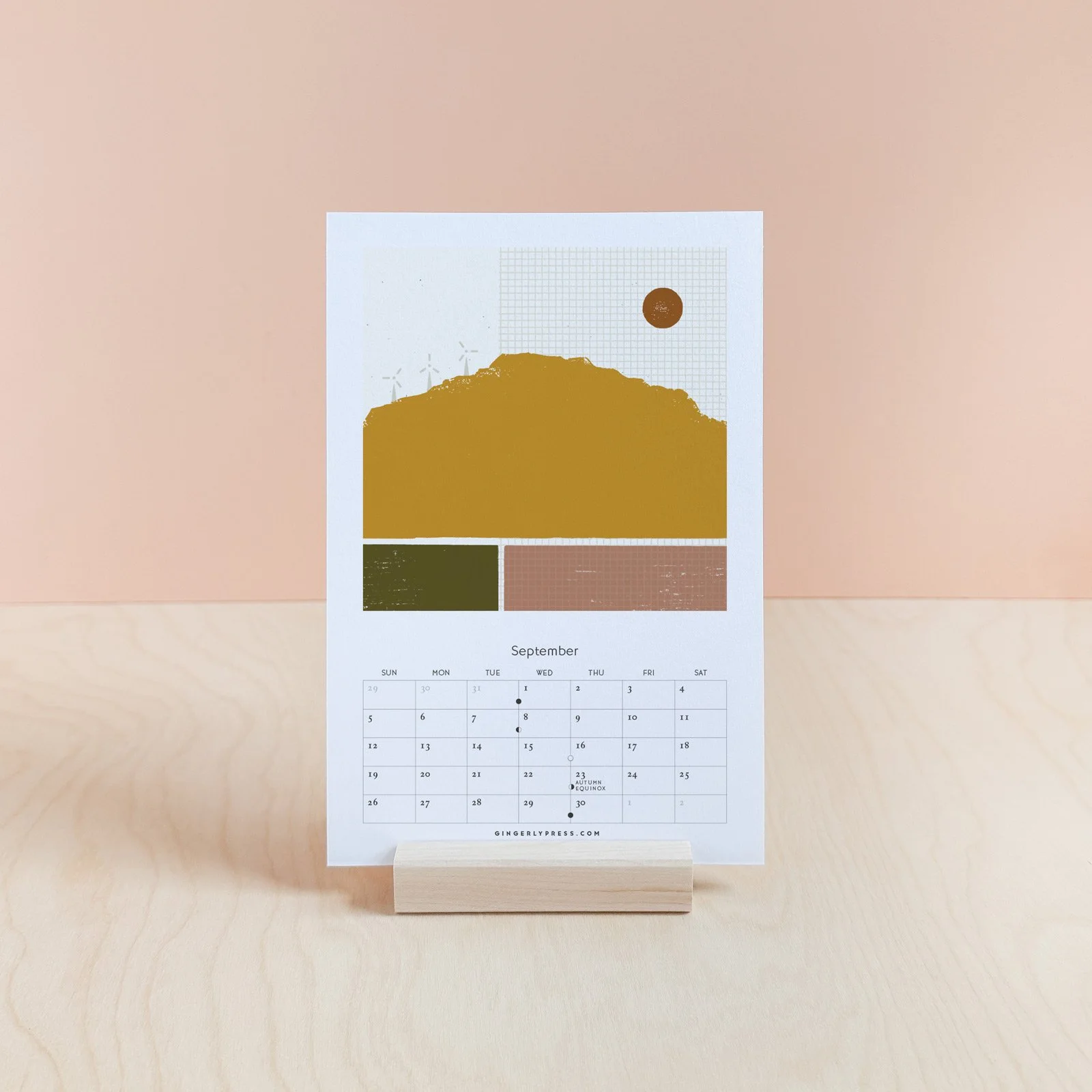
Making the digitally printed Landscapes Calendar involved quite a learning curve for this letterpress luddite!
Fifteen years ago, when I was still a budding undergraduate designer, looking to find my way in a digital-forward Visual Communications Major, I found myself drawn to the analog form of letterpress printing like a moth to a flame. I was stubborn and refused to believe my career path in the art world would be all in front of a computer—and that’s what led to the beginning of Gingerly Press in 2013!
While I find myself in front of a computer often to run my small business, for the first 12 years of business, all of my products were still made via analog letterpress printing. However, last year, for the first time, I had the desire to make a digitally designed product: an annual art calendar. Letterpress printing the calendar seemed like a poor business decision given the number of layers of print needed to create it and it being a product that would time out of relevance within a couple months.
So I ventured to try something new: digitizing my letterpress prints. I knew I didn’t want to just scan & digitize my existing printed designs, but rather digitize the individual printed elements and compose them into my illustrations on the computer. This way, I could build a library of these printed elements to create compositions from digitally, not only for the calendar, but also for any other projects that come to mind in the future—opening a world of possibilities!
Below is the step-by-step process of how I digitized my prints in Photoshop and turned them into the annual Letterpress Landscapes Calendar. We’ll see where this new process takes me next!
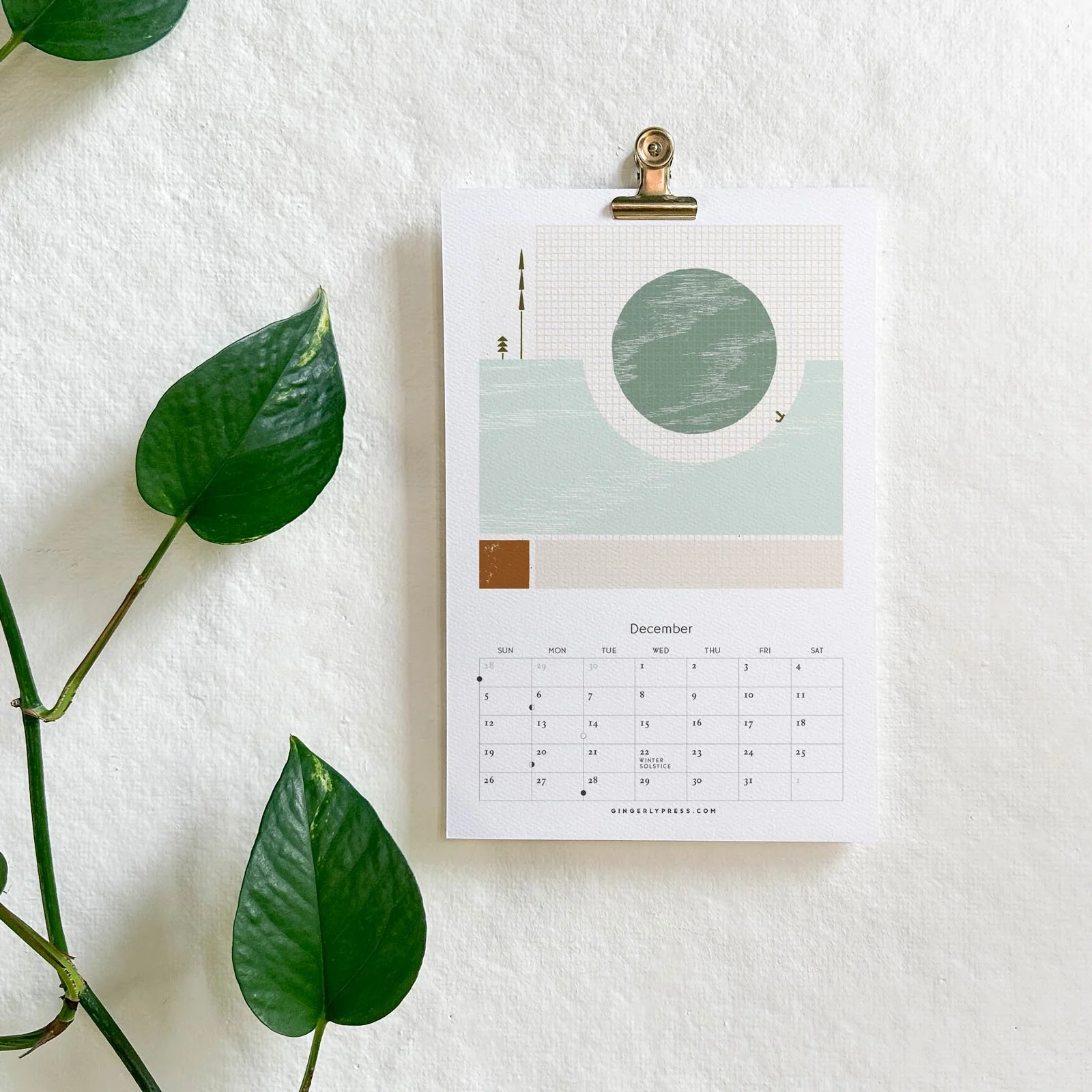
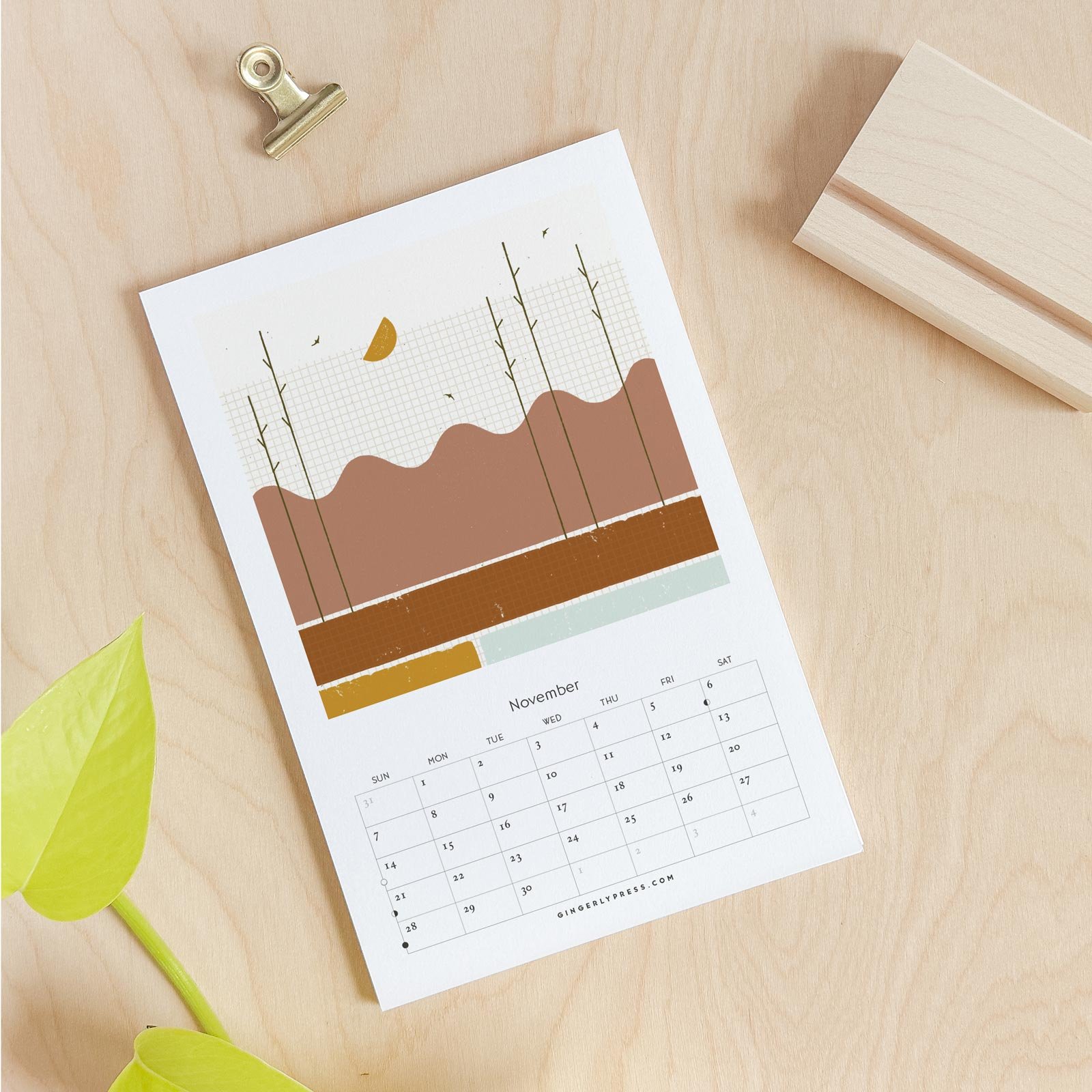
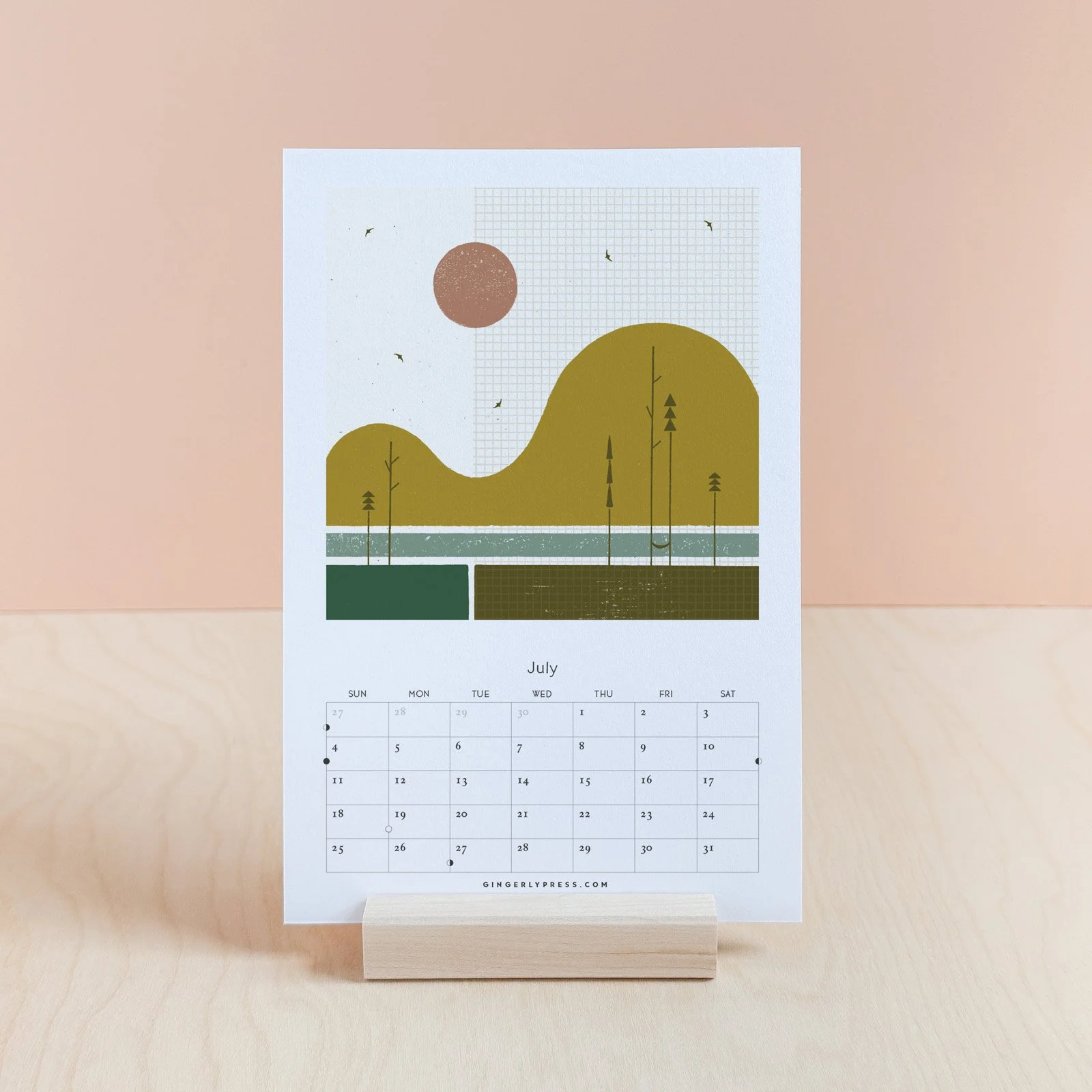
Step 1: Research Digitizing Techniques
First I studied up with these classes below to figure out a workflow that works best for my digitizing desires. This year I reacquainted with & cleaned up my workflow notes so I can repeat the process easily.
On Skillshare: Digitizing Hand Drawn Sketches with Character by Dylan M. — this was the most helpful class for my particular workflow
On Skillshare: Digitizing Your Paint with Dylan M. — this class was FULL of great techniques for digitizing artwork in Photoshop
A Partners In Print Online Class: Back To The Futura with David Wolske — I took this class years ago and dug up my old notes
A Free Webinar lesson taught by Jen Hewett and hosted by Sarah Watts (who has a very in depth course I haven't taken on digitizing art)
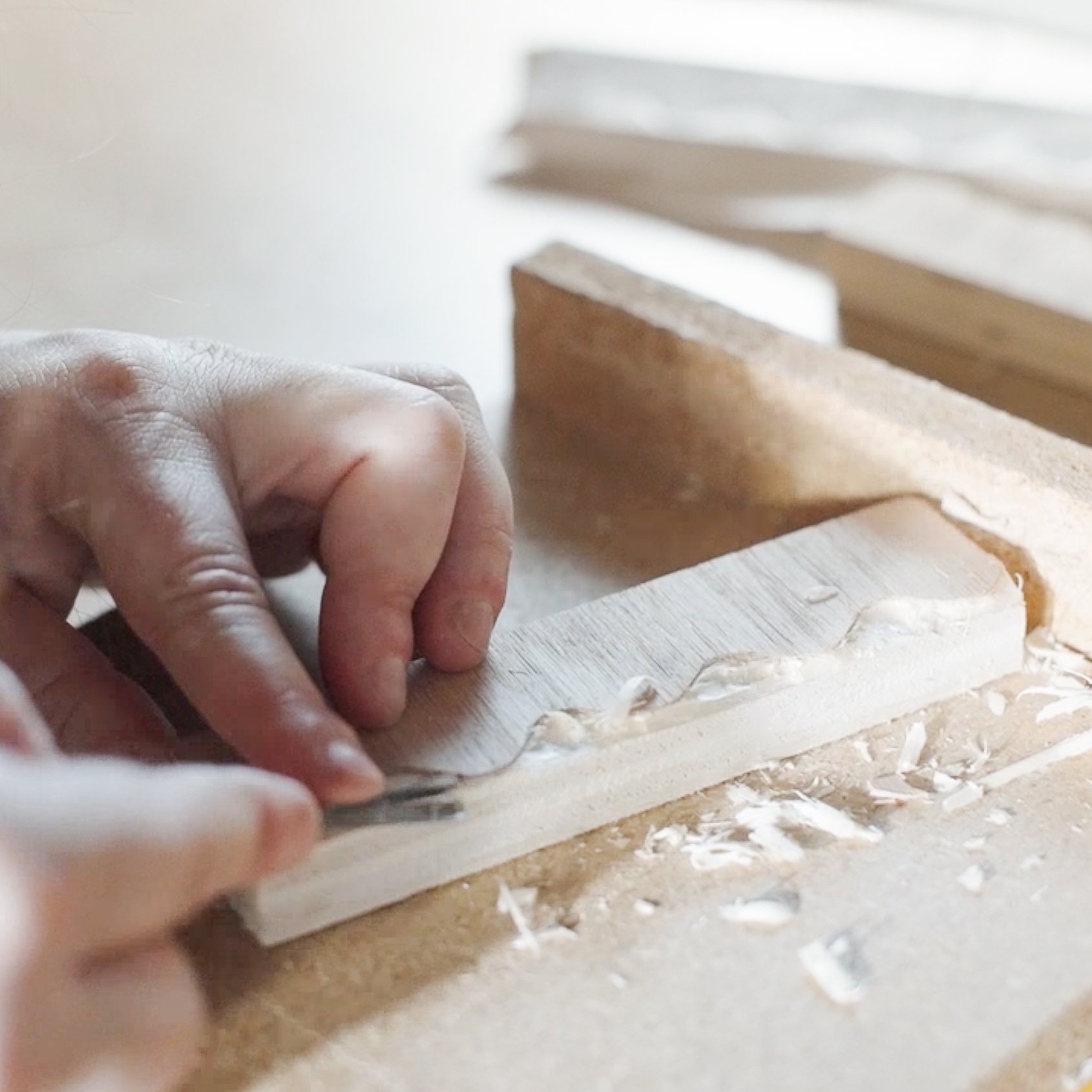
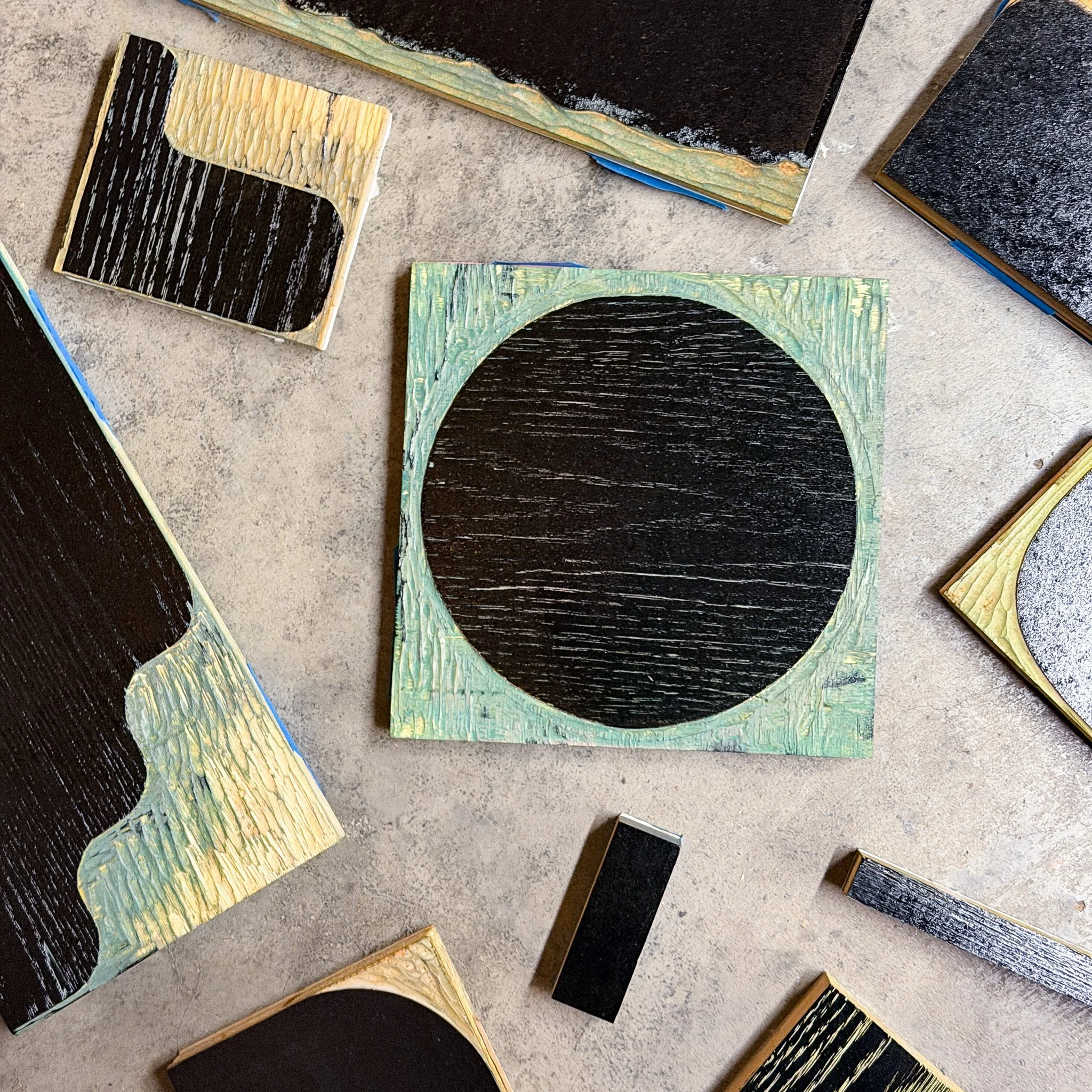
Step 2: Letterpress Print Vintage Sorts & Carved Blocks
To get the most saturated color digitally, I need crisp prints of the various vintage letterpress sorts & carved blocks I want to digitize, specifically with a 100% black ink. I added a handful of new shapes to my digital collection this year for a bit more variety to design with! I expect this digital library to continue to expand a little more each year.
Step 3: Scan the Printed Shapes
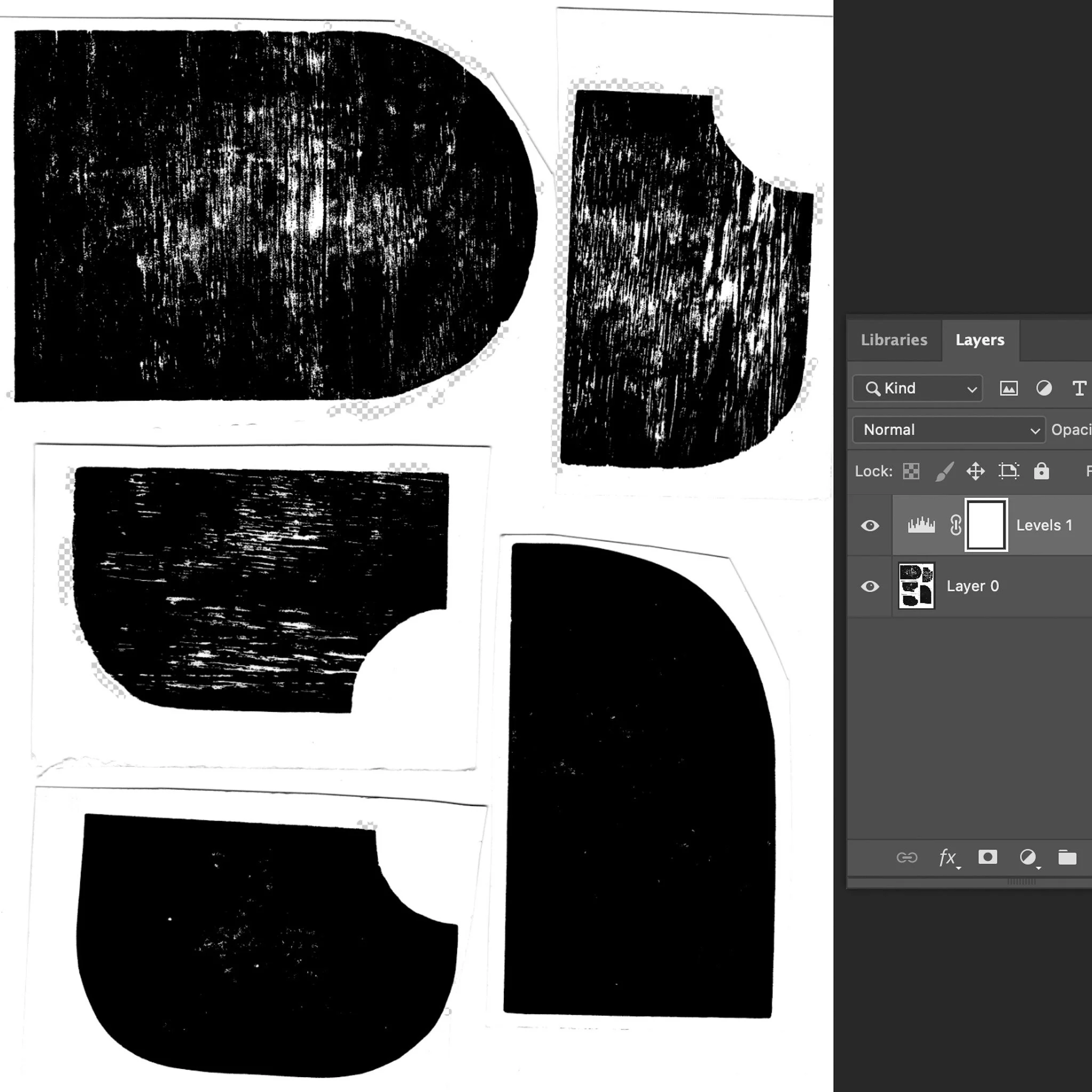
After some drying time, I scan the prints into my computer at 600dpi using my not-so-fancy HP Officejet Scanner. I printed & scanned multiples of most shapes since the prints would be slightly different inking each time, giving me some variety of printed texture to work with in the digital compositions.
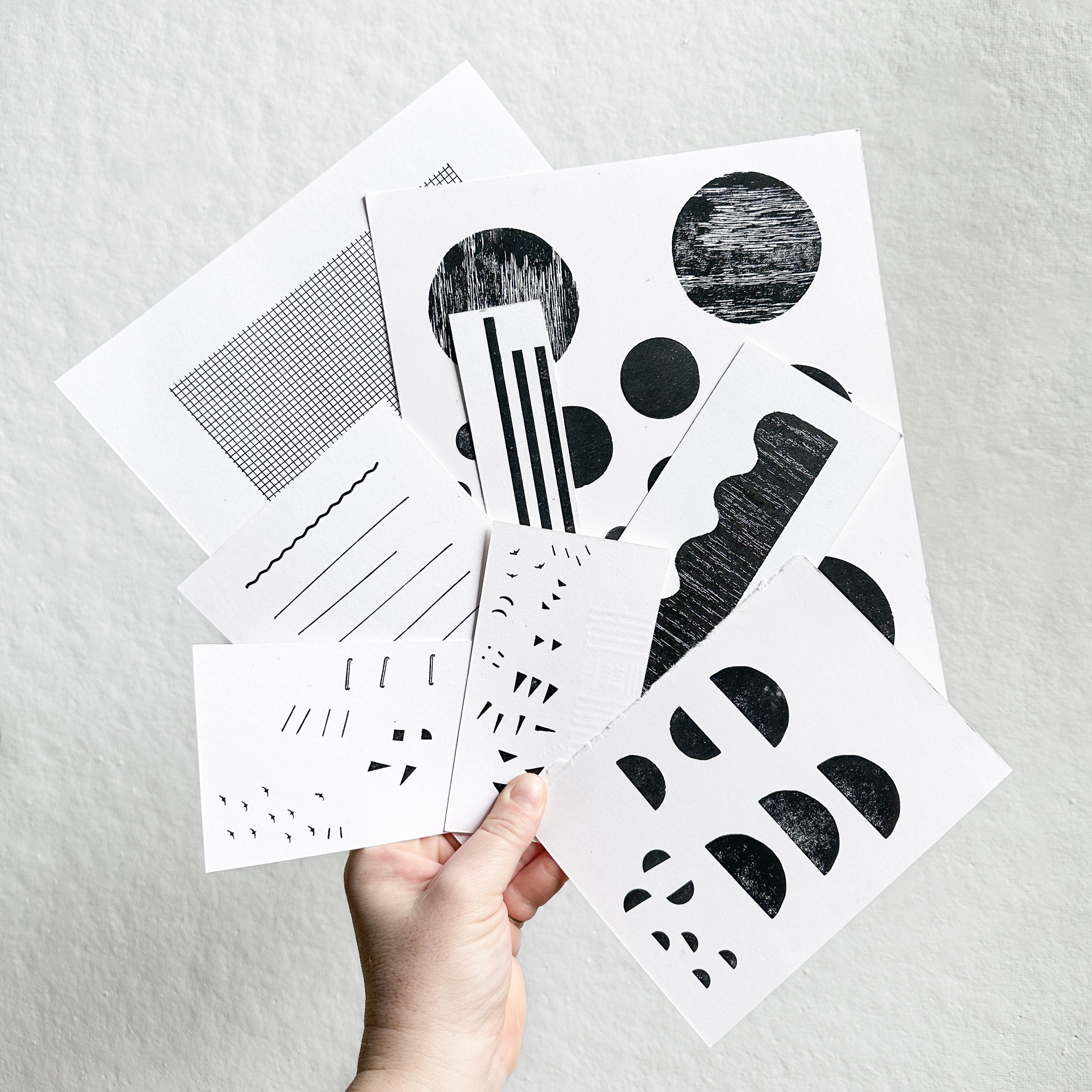
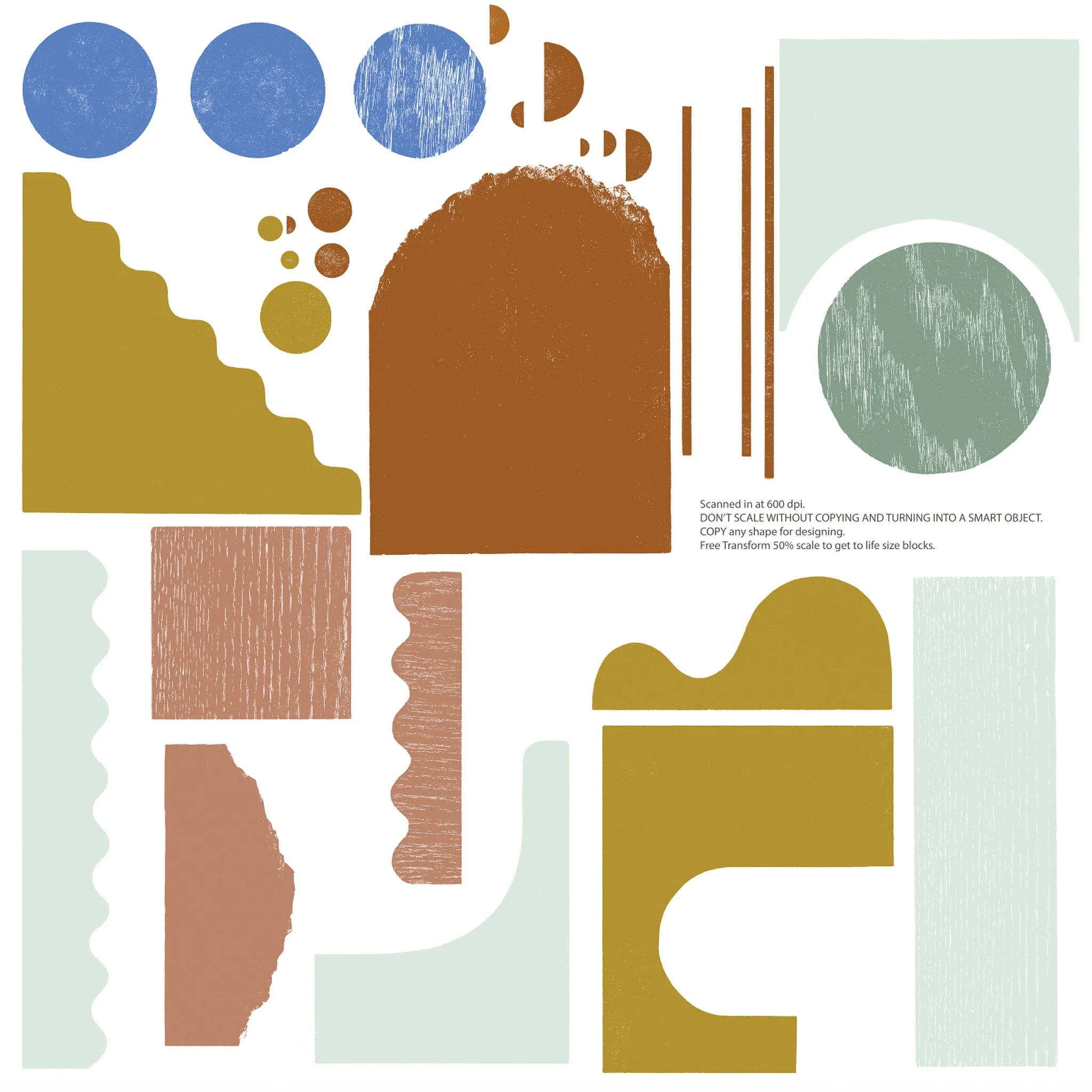
Step 4: Digitize a Library of Printed Shapes
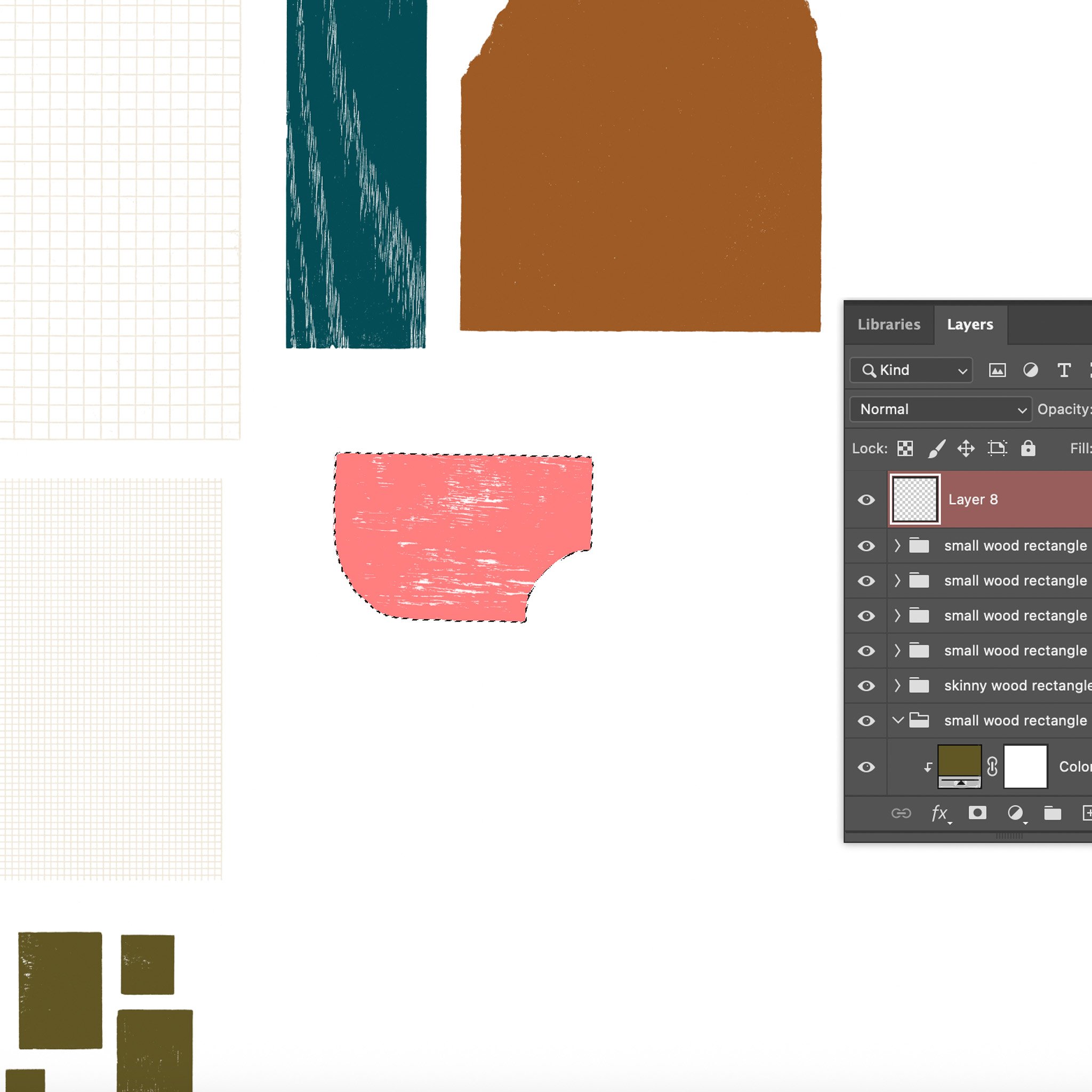
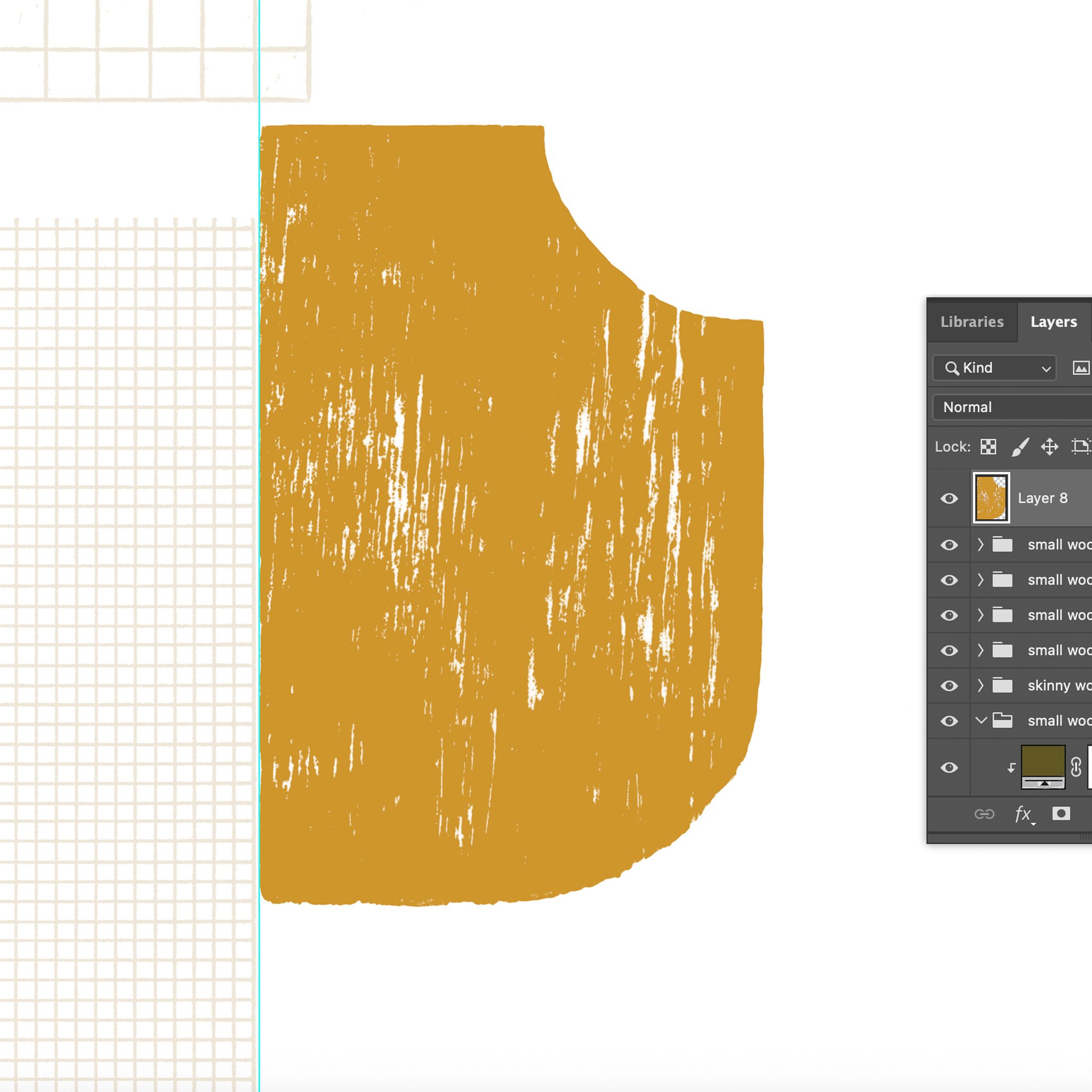
Each scanned shape needs to be digitized in Photoshop individually—a tedious process! First, I clean up the scan and adjust it for higher contrast, then do a Quickmask of each shape to select the shape off its background to color it. I collect all those digitized shapes in a “landing zone” document. There, I've assembled the sorts to build my trees, turbines & boats for an easy-to-grab library of digital elements to design the calendar artworks with. The beauty of this library is that once the scanned prints are digitized in the library, I can use them over and over without needing to redo the digitizing process for each use.
Step 5: Build the Compositions
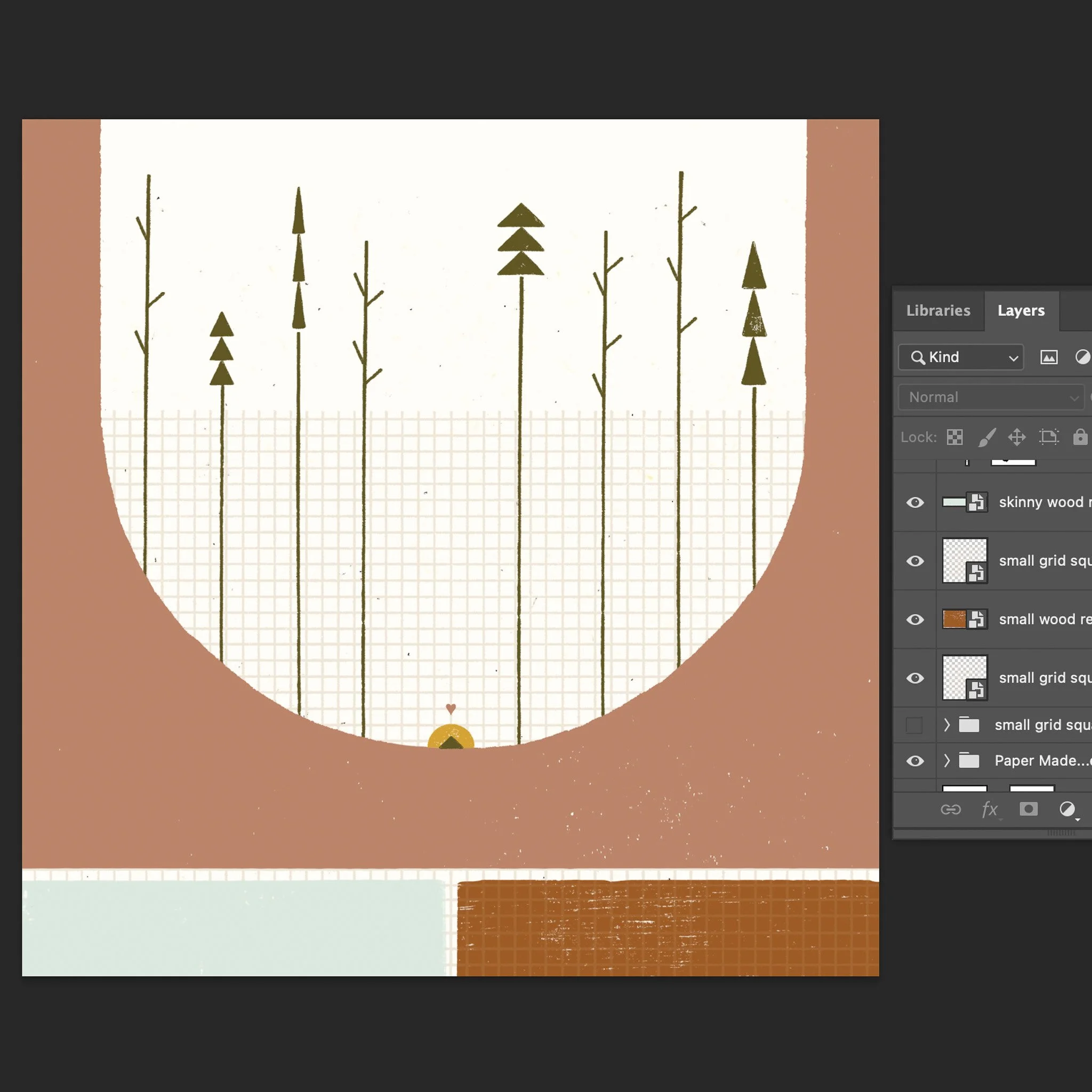
Once I created the library of individual shapes, I had a bunch of fun building each month's compositions for the calendar. I experimented with layering in Photoshop to mimic the layering of a real letterpress print, and I'm so delighted with the textured results! I even scanned in my speckletone paper that I use for all my letterpress printed products for the background.
Step 6: Place Compositions in the Calendar
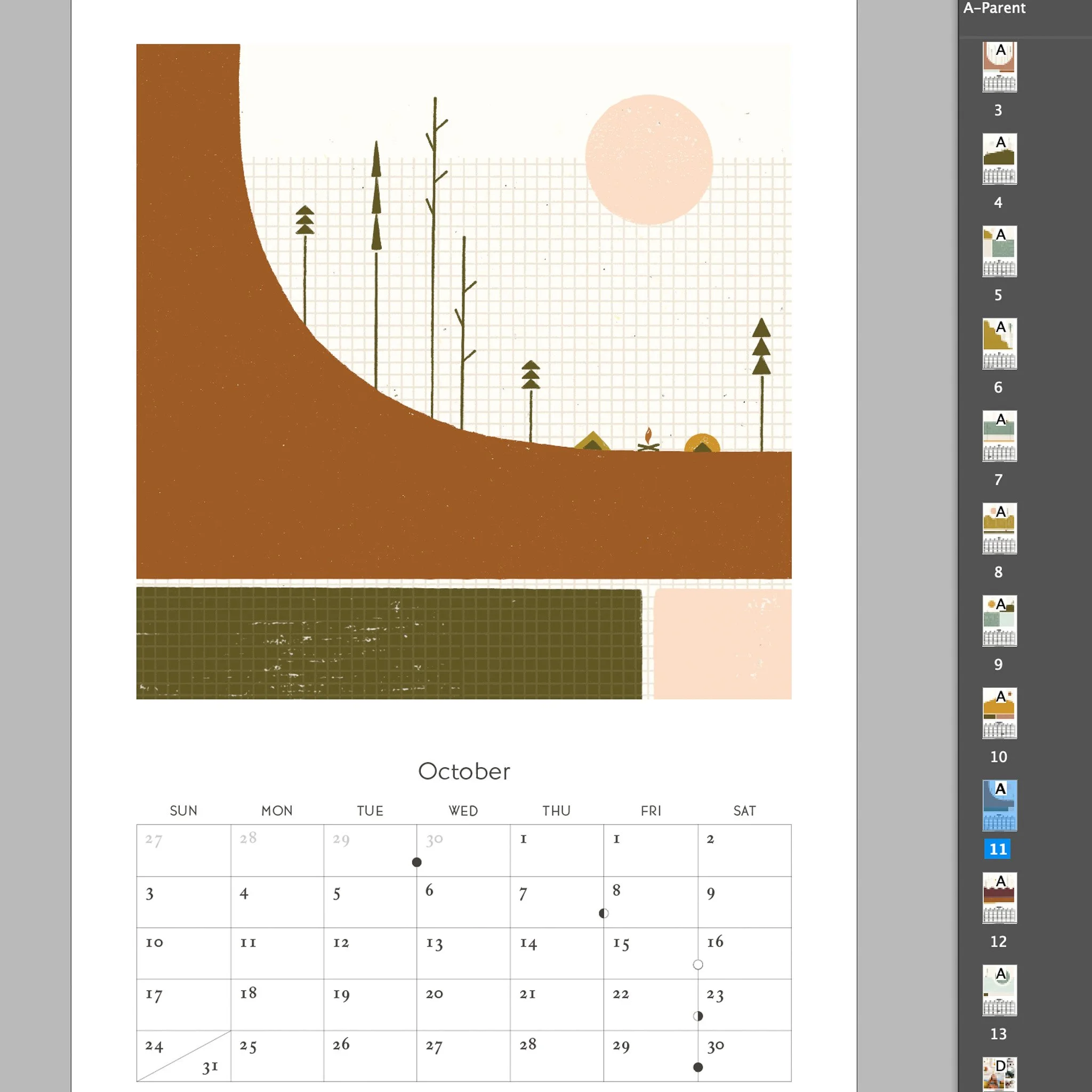
To finish off the calendar design, I placed each of the digital compositions into my calendar layout in Adobe InDesign and exported the file to prep for some print tests and the eventual final print run at the local Raff Printing on Pittsburgh's South Side.
Step 7: Create Mock-ups for the Preorder
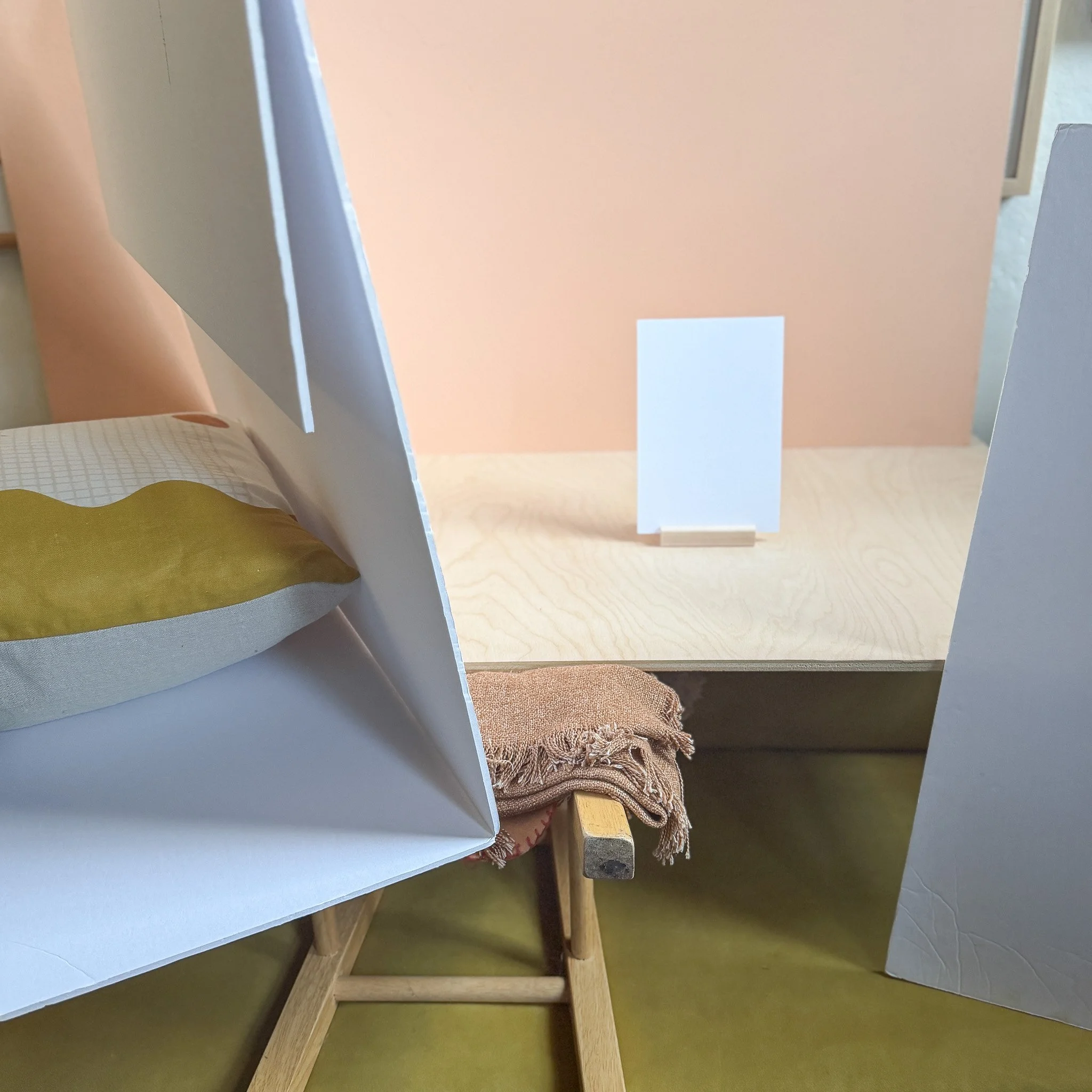
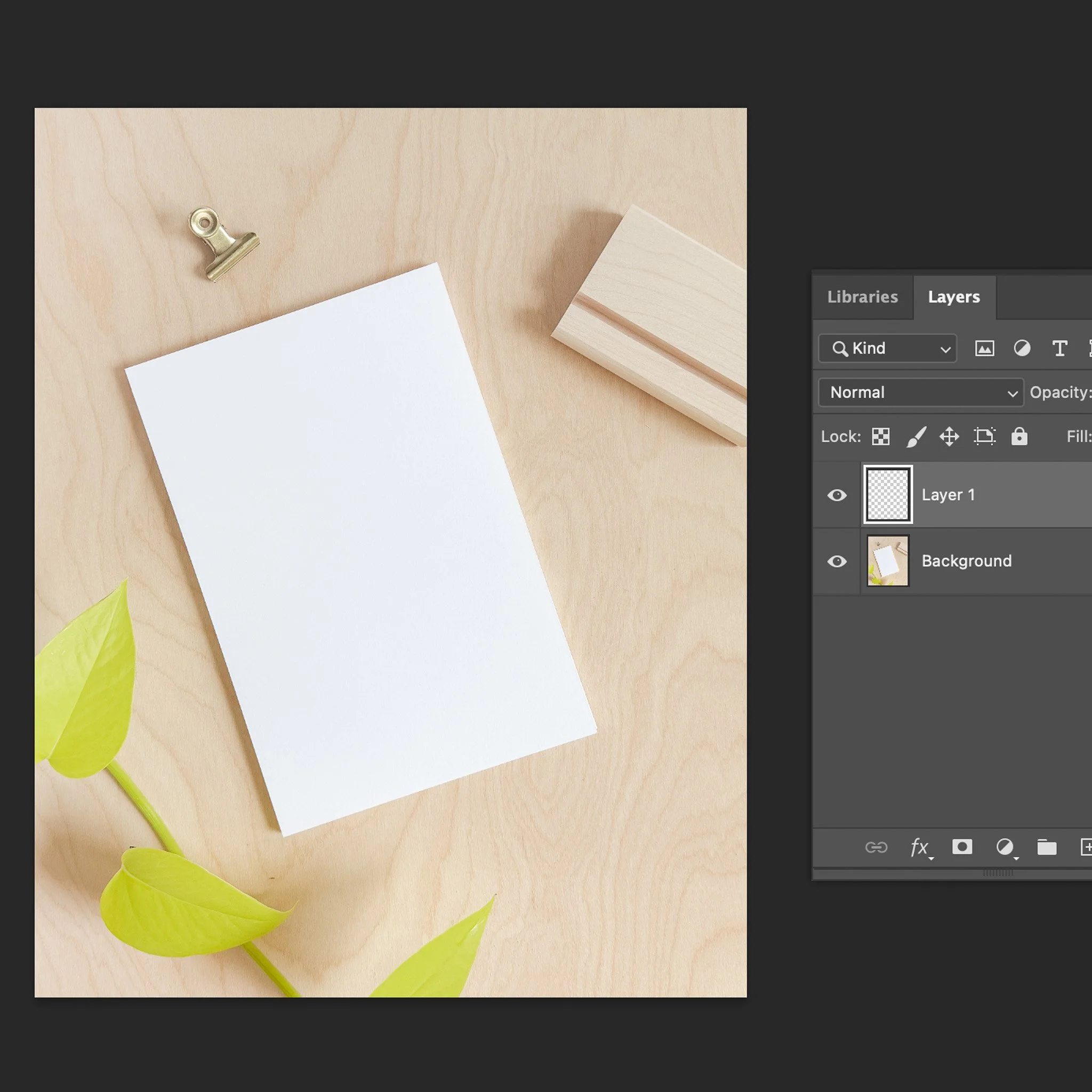
The calendar isn't printed until I have my final numbers when the preorder is closed. So in order to launch the preorder, I made mock-ups of the calendar by taking photos of blank calendar pages and photoshopping screenshots of the calendar layouts into those product photos. I learned some new skills in this department this year, which allowed me to mock-up the side angle shot below!
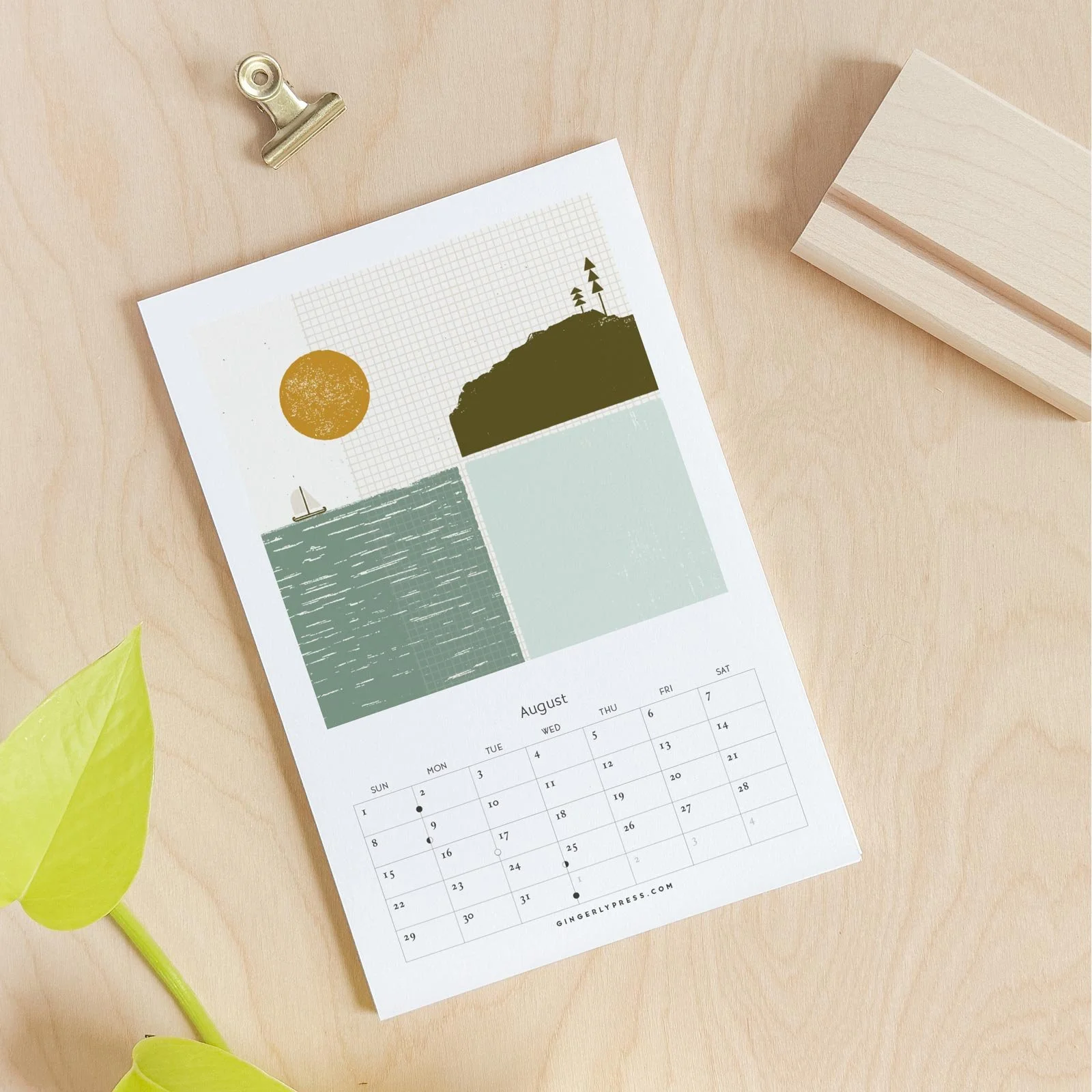
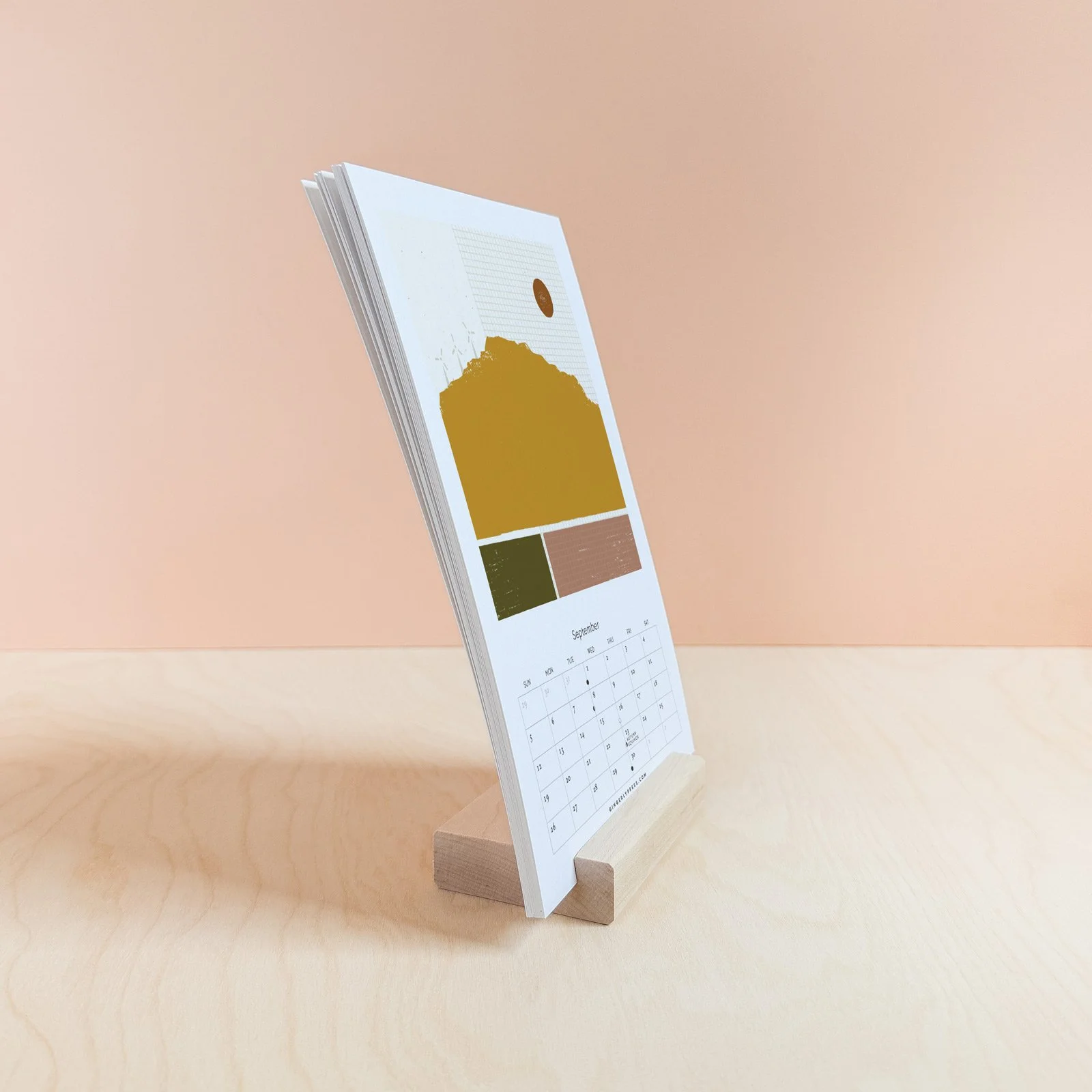
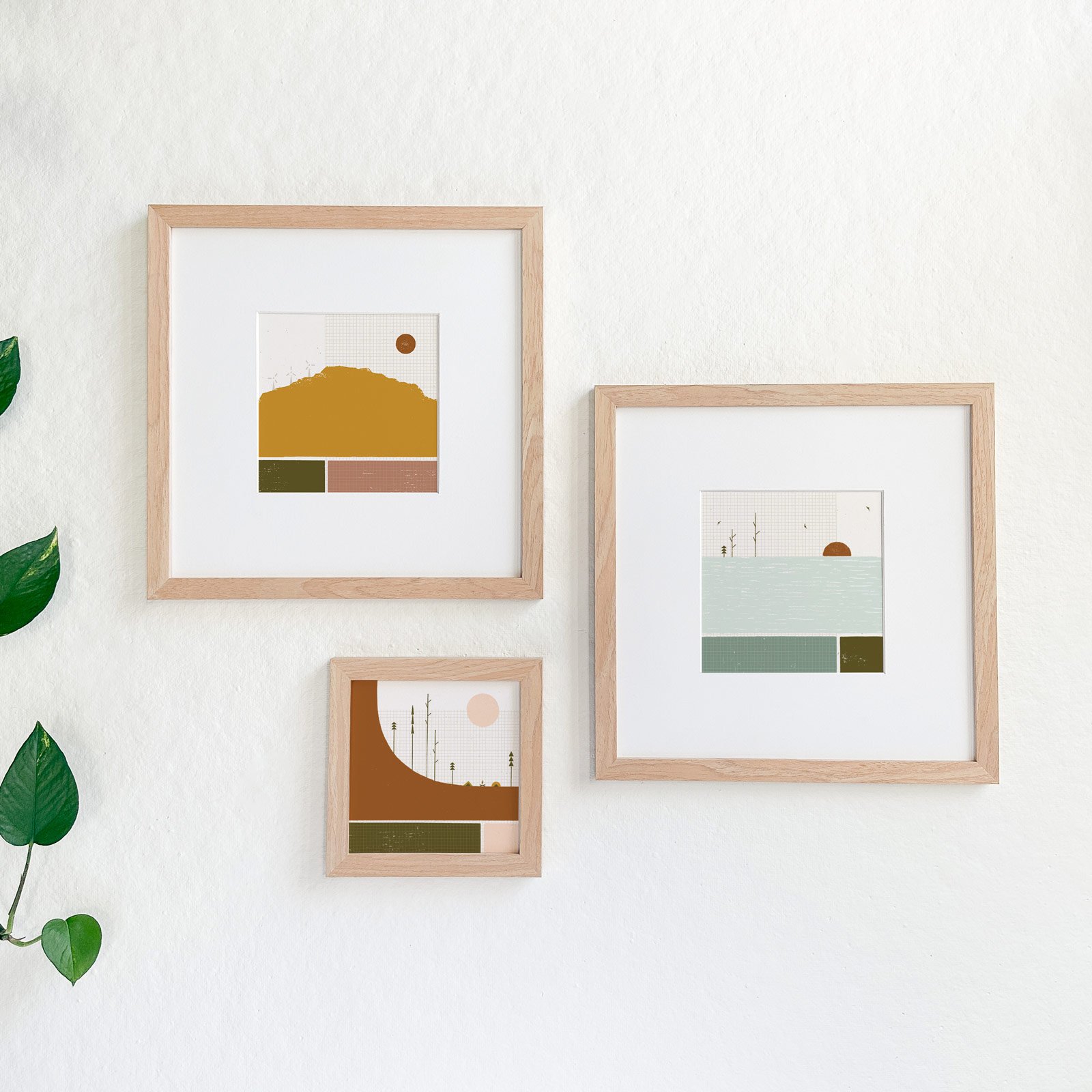
One of the fun things about my calendar design is that at the end of the year, you can cut the 3” of calendar off at the bottom and have twelve 6×6” artworks ready to frame & enjoy on your walls for many years to come!
I hope you enjoyed reading through this process for making the annual Letterpress Landscapes Calendar. If you have any questions about the Photoshop specifics within the digitizing process, comment below and I can dive into the technicalities further!